#1. Welcome
HMF Address is your address book for Windows. It keeps track of people and companies with their address, phone, email, birthday and notes, reminds you of birthdays and prints lists and labels.
- No account and no internet needed: everything runs on your PC.
- Saves by itself: every change is saved straight away. There’s no Save button to look for.
- Nothing gets lost: a backup is made every day, and deleting can be undone.
#2. Installing and first start
- Download HMF Address from the download page.
- Setup: double-click the file and follow the steps. ZIP: unpack it with right-click › Extract All and start
HMFAddress.exe. The filesk4d.dllmust stay in the same folder. - Does Windows warn you with “Windows protected your PC”? Click More info and then Run anyway. This is normal for new programs.
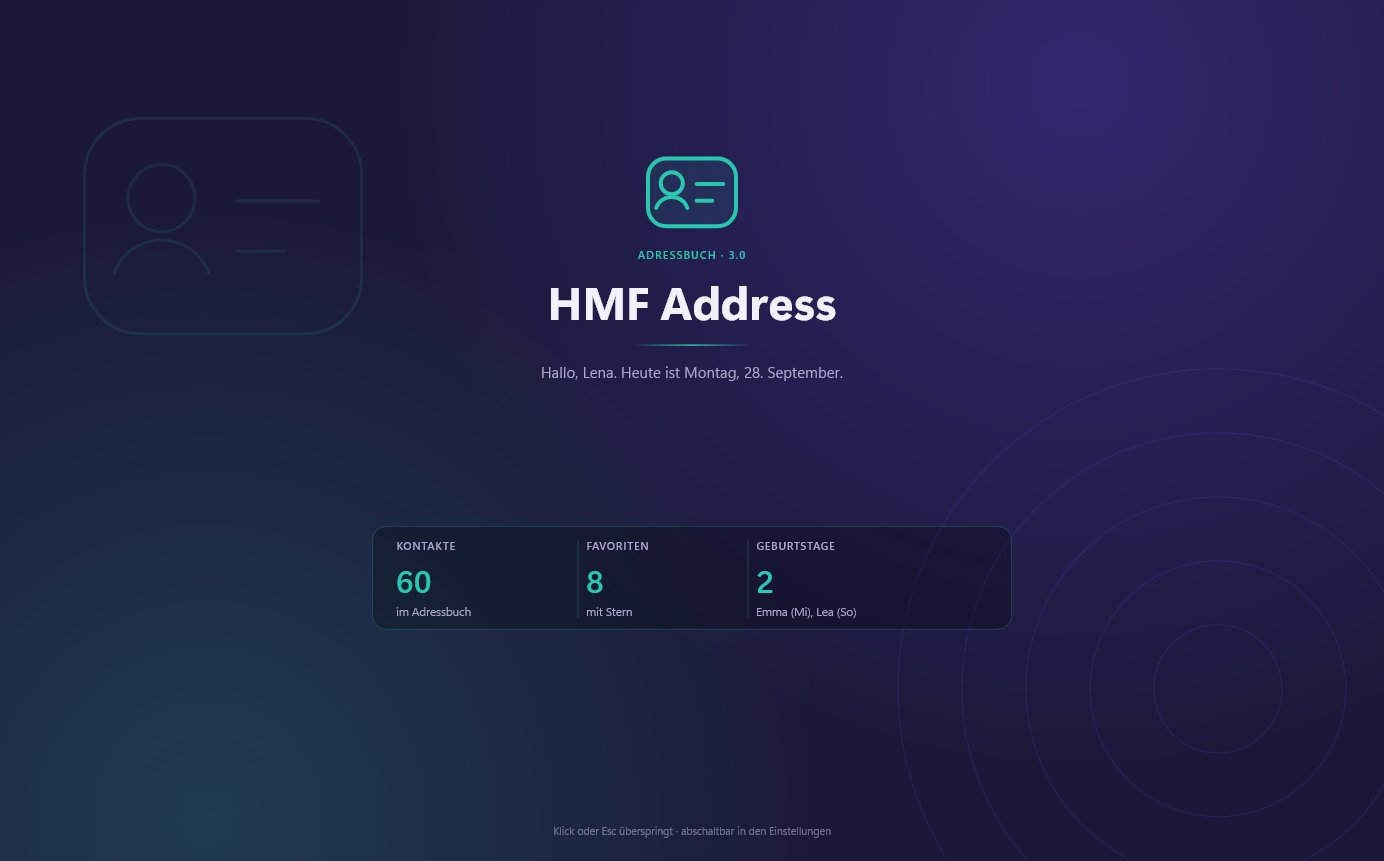
When it starts, HMF Address greets you with your name, the number of your contacts and the birthdays coming up in the next few days. A click or Esc closes the greeting. You can switch it off under Settings › Appearance.
#3. Quick start
Ready in two minutes:
- Get your contacts: under Settings › Import, HMF Address reads contacts from Outlook, Google Contacts, Excel (CSV) or your mobile (vCard). To try it out, there’s Settings › Load sample contacts with around 60 examples.
- Add a contact: click New contact on the left or press Ctrl+N. Type a name, done.
- Find: type in the search box at the top. The list instantly shows what matches.
- Enter your name: under Settings › You & your sender details you’ll find your first name for the greeting and your sender details for labels and printouts.
#4. The contact list
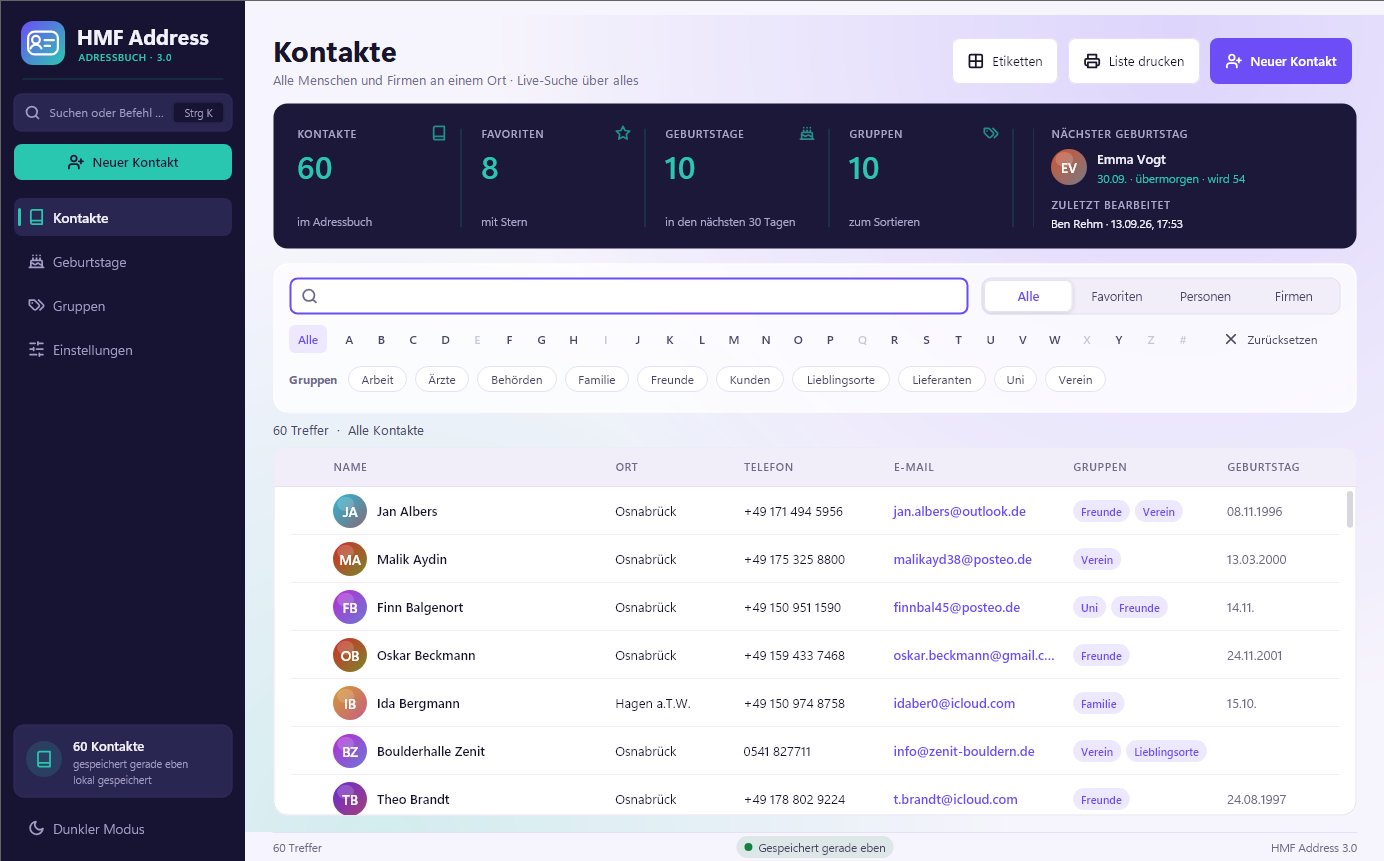
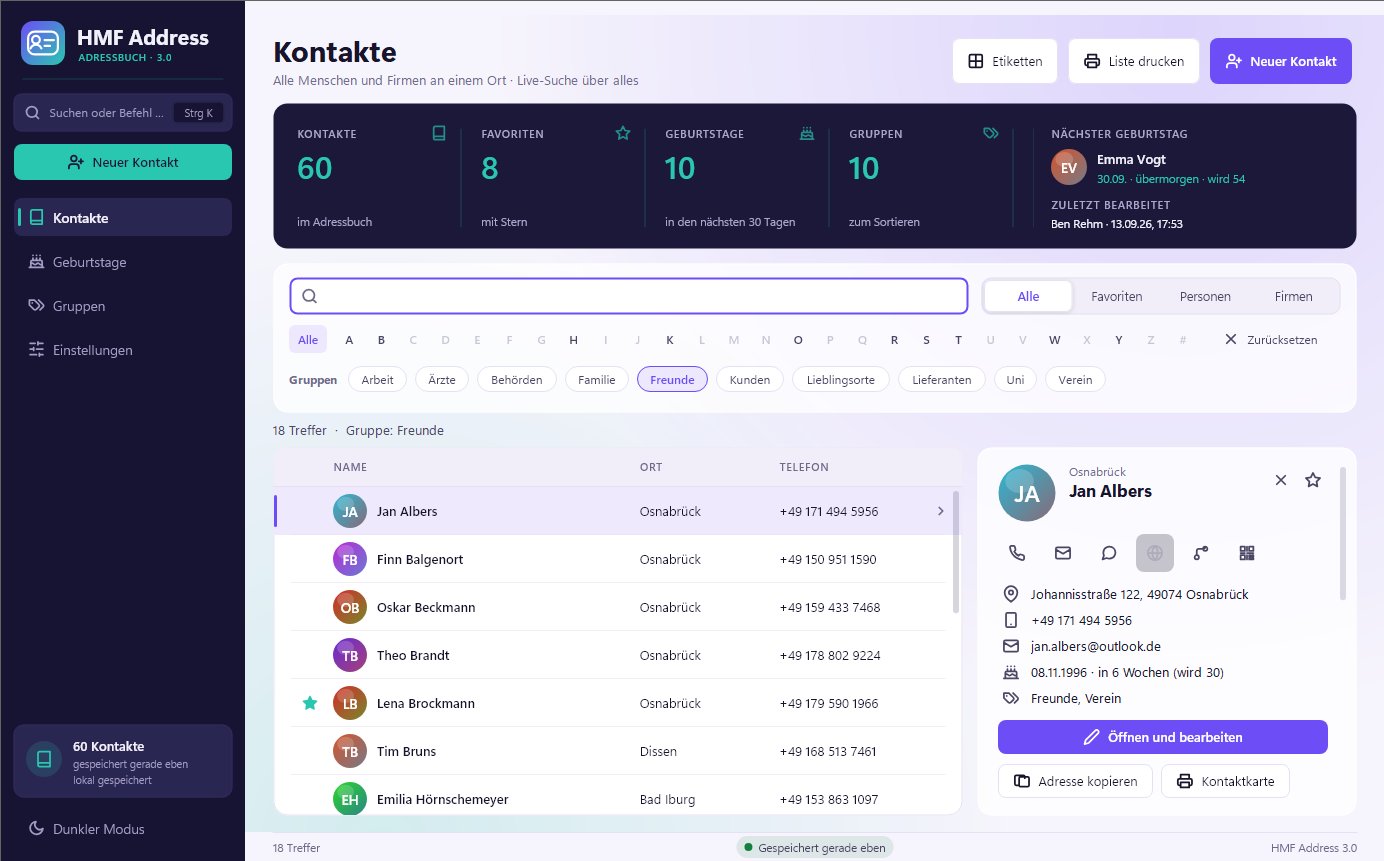
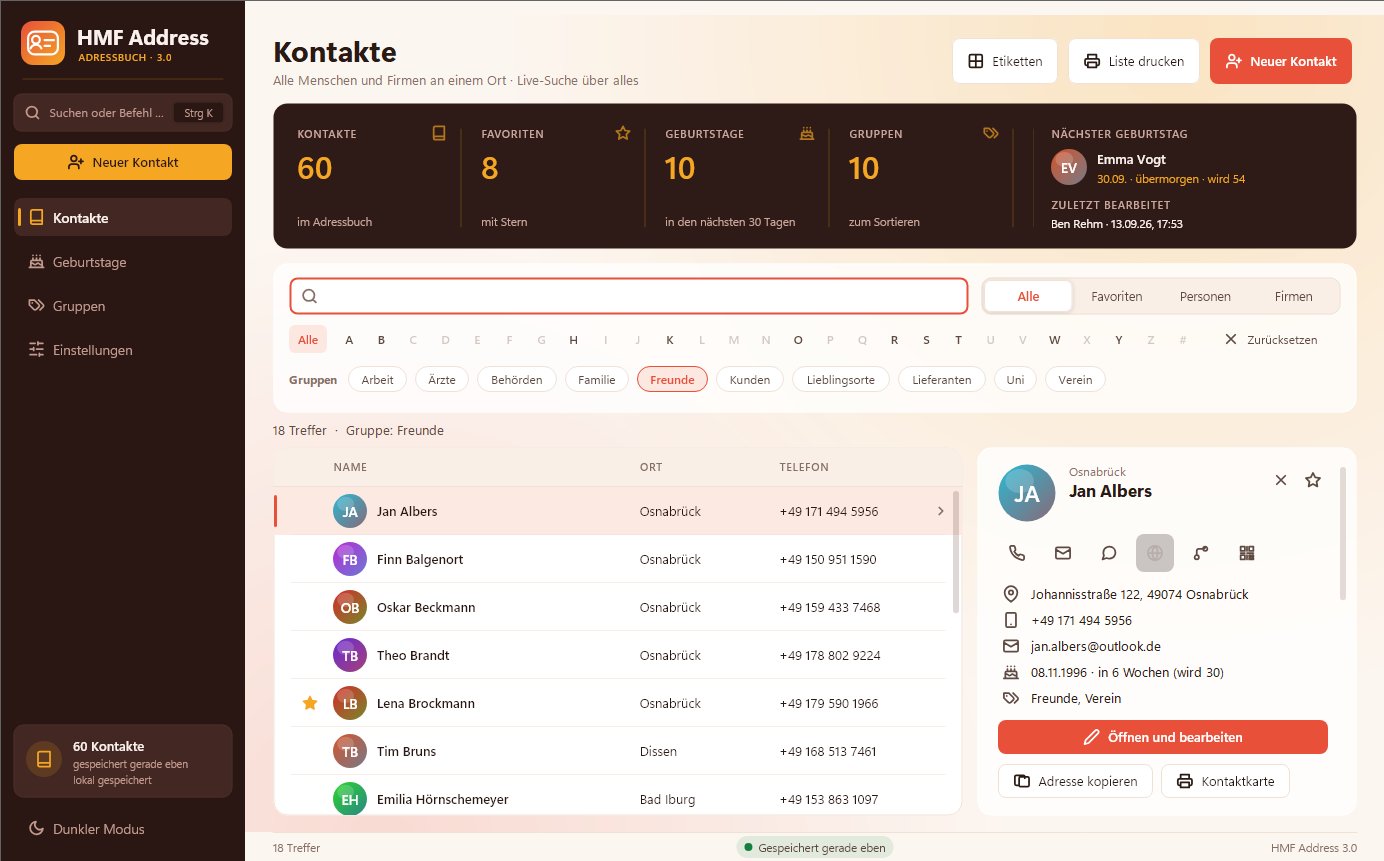
The contact list is the home page. At the top you see four key figures: contacts, favourites, birthdays in the next 30 days and groups. Clicking a figure filters the list or opens the matching page. To the right are the next birthday and the most recently edited contact.

Searching and filtering

- Search box: searches all details, not just names: company, department, address, phone numbers, email, websites, groups, notes and birthday. Ctrl+F jumps straight into it.
- Several words are combined: “club osnabrück” finds everyone in the Club group who lives in Osnabrück. “dentist” finds the contact whose note you wrote it in.
- All, Favourites, People, Companies: limits the list to one kind of contact.
- A to Z: shows only contacts starting with that letter. Grey means there are no contacts with that letter.
- Groups: clicking a group shows only its members.
- Reset clears all filters.
Filters and search are kept when you open another page in between.
Sorting and favourites
- Click a column heading to sort by it. A second click reverses the order.
- The star in front of the name makes a contact a favourite. You can quickly find favourites again with the Favourites filter.
The sidebar
Clicking a name opens the sidebar on the right with all the important details. Use the arrow keys ↑ and ↓ to switch contacts; Enter opens the contact for editing.
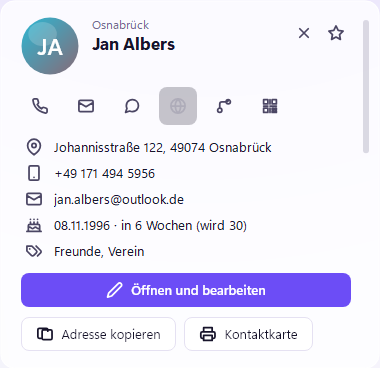
The round buttons at the top are quick actions:
| Button | What happens |
|---|---|
| Phone | calls the number via your linked app, for example “Phone Link” or Teams |
| Envelope | opens a new email to the contact |
| Speech bubble | opens WhatsApp with the mobile number |
| Globe | opens the contact’s website |
| Route | shows the way to the address in Google Maps |
| QR code | shows a QR code you can use to get the contact onto your phone |
Below them: Open and edit, Copy address (ready formatted for a letter), Contact card (print), Duplicate, To Word (a new Word document with the address, if Word is installed) and Delete.
#5. Adding and editing contacts
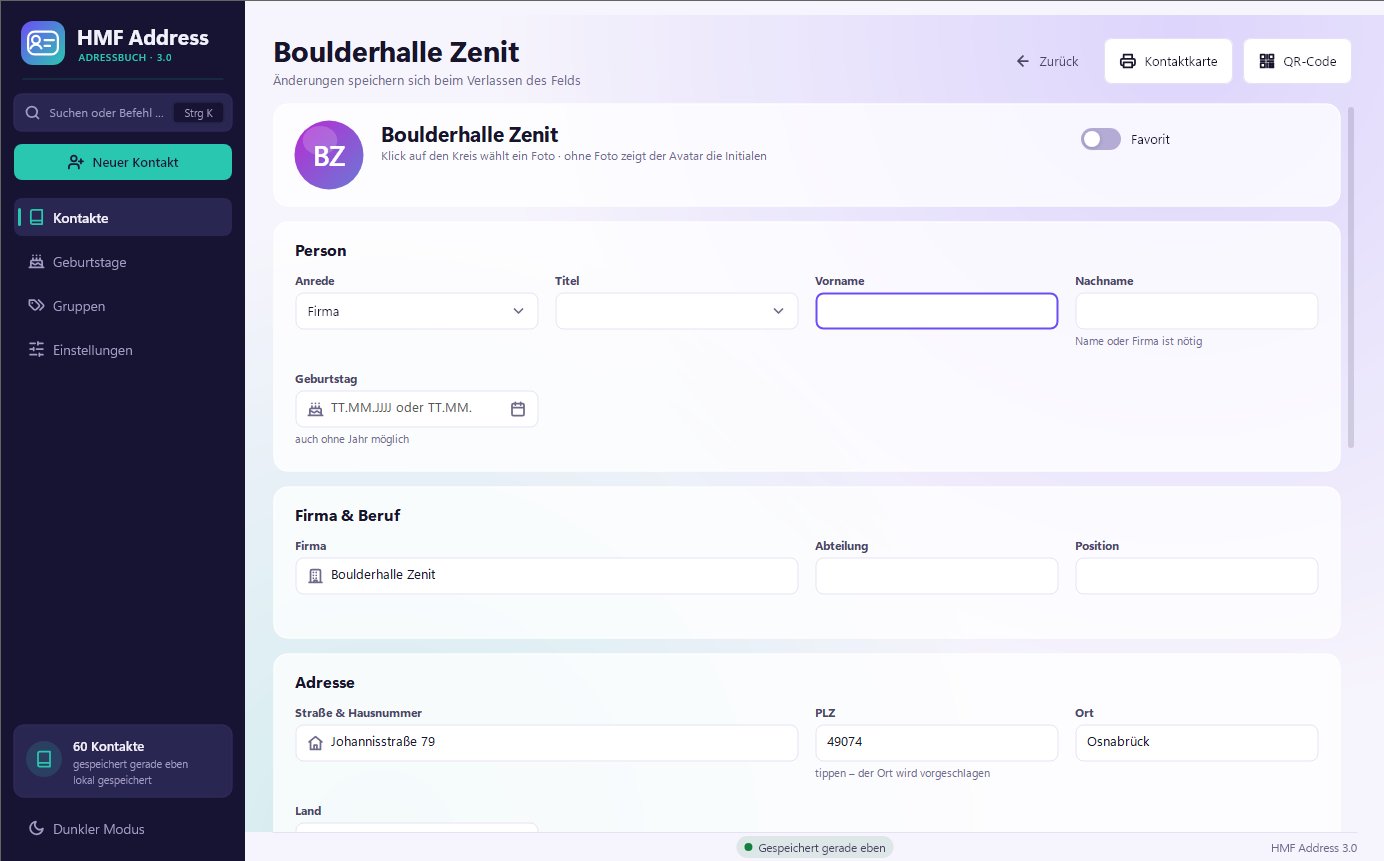
Click New contact or press Ctrl+N. To edit, open a contact with a double-click or via the sidebar.
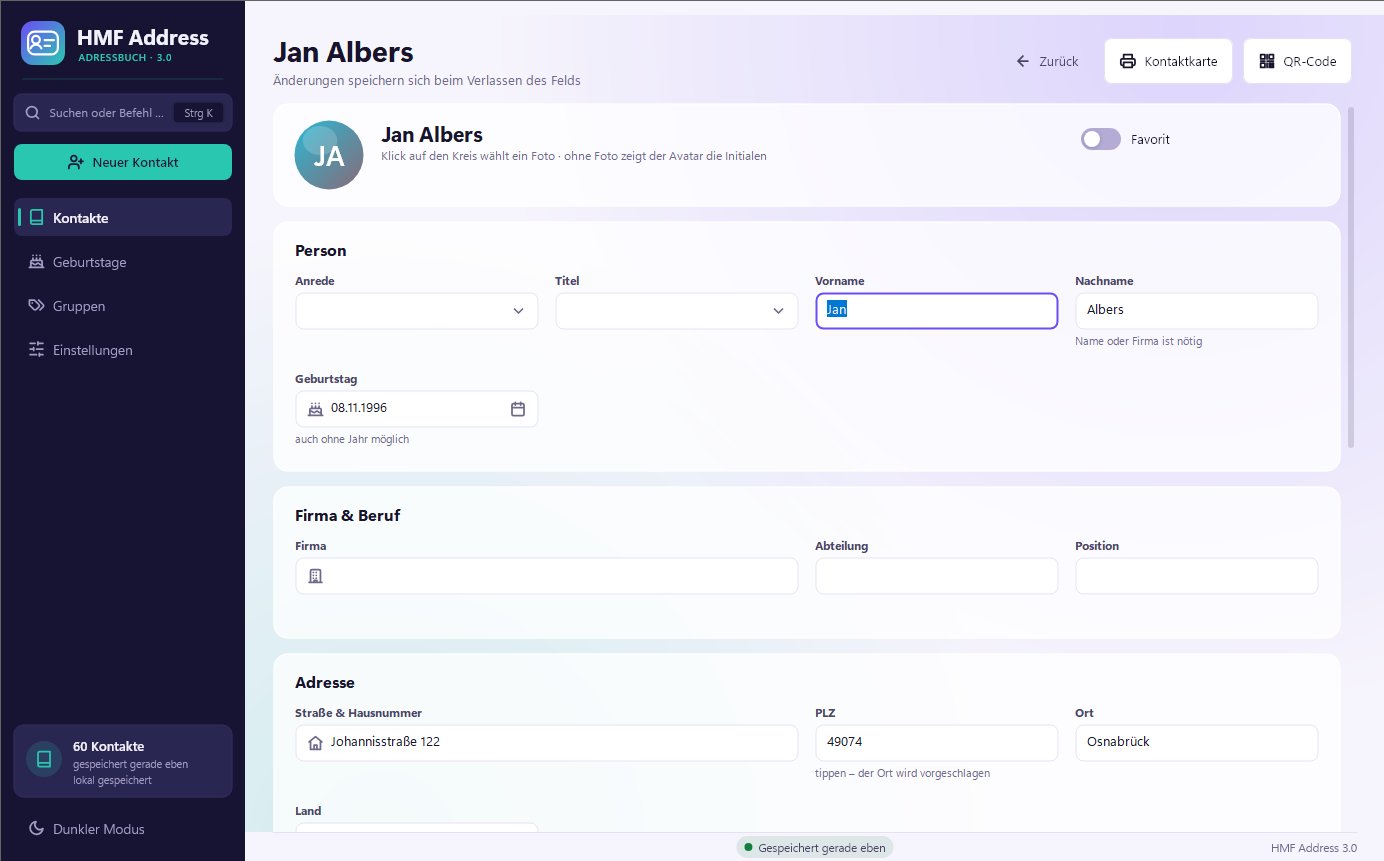
The details are divided into sections:
- Person: salutation, title, first name and surname, birthday
- Company & job: company, department, job title. A contact with only a company name counts as a company.
- Address: street, postcode, town, country
- Contact: mobile, home and work phone, fax, as many email addresses, websites and profiles as you like
- Groups & notes: groups and free text
Good to know
- Saving happens automatically as soon as you leave a field. The status bar at the bottom then says “Saved just now”. Ctrl+S saves immediately.
- Only one detail is required: a name or a company.
- Postcode: type the postcode and HMF Address suggests the town.
- Birthday: enter it as
24/08/1990or without the year as24/08, or pick it from the calendar next to the field. Without a year, no age is shown. - Photo: click the round avatar at the top and choose a picture. Without a photo, the circle shows the initials.
- Favourite: use the switch at the top right.
- Duplicate? If there is already a contact with the same name, a note appears with Open existing.
- An incomplete email address is marked in red, so no typo slips through.
Deleting and undo
Delete removes the contact immediately, without an annoying “Are you sure?”. A message with Undo appears at the bottom, or you can press Ctrl+Z. The contact is then back again, with all its details.
#6. Birthdays
The Birthdays page shows who is celebrating next: with the date, “in 3 days”, the new age, and phone and email so you can send your wishes straight away.
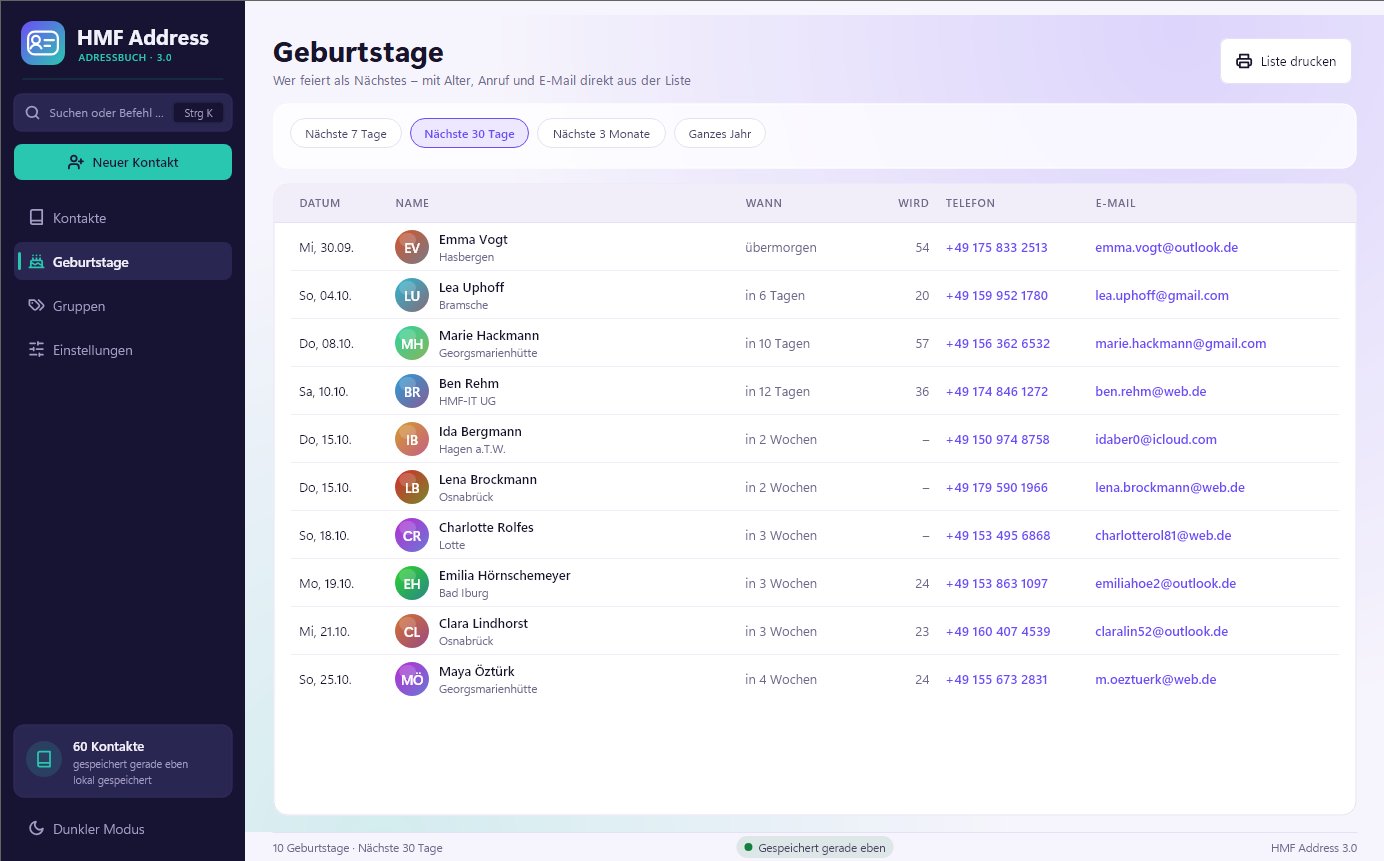
- At the top, choose the period: next 7 days, 30 days, 3 months or the whole year.
- Print list turns it into a birthday list to put up on the wall.
- Anyone with a birthday today also appears in the greeting on start-up.
#7. Groups
Groups help you organise contacts: family, friends, club, work, neighbours… Each contact can be in as many groups as you like.
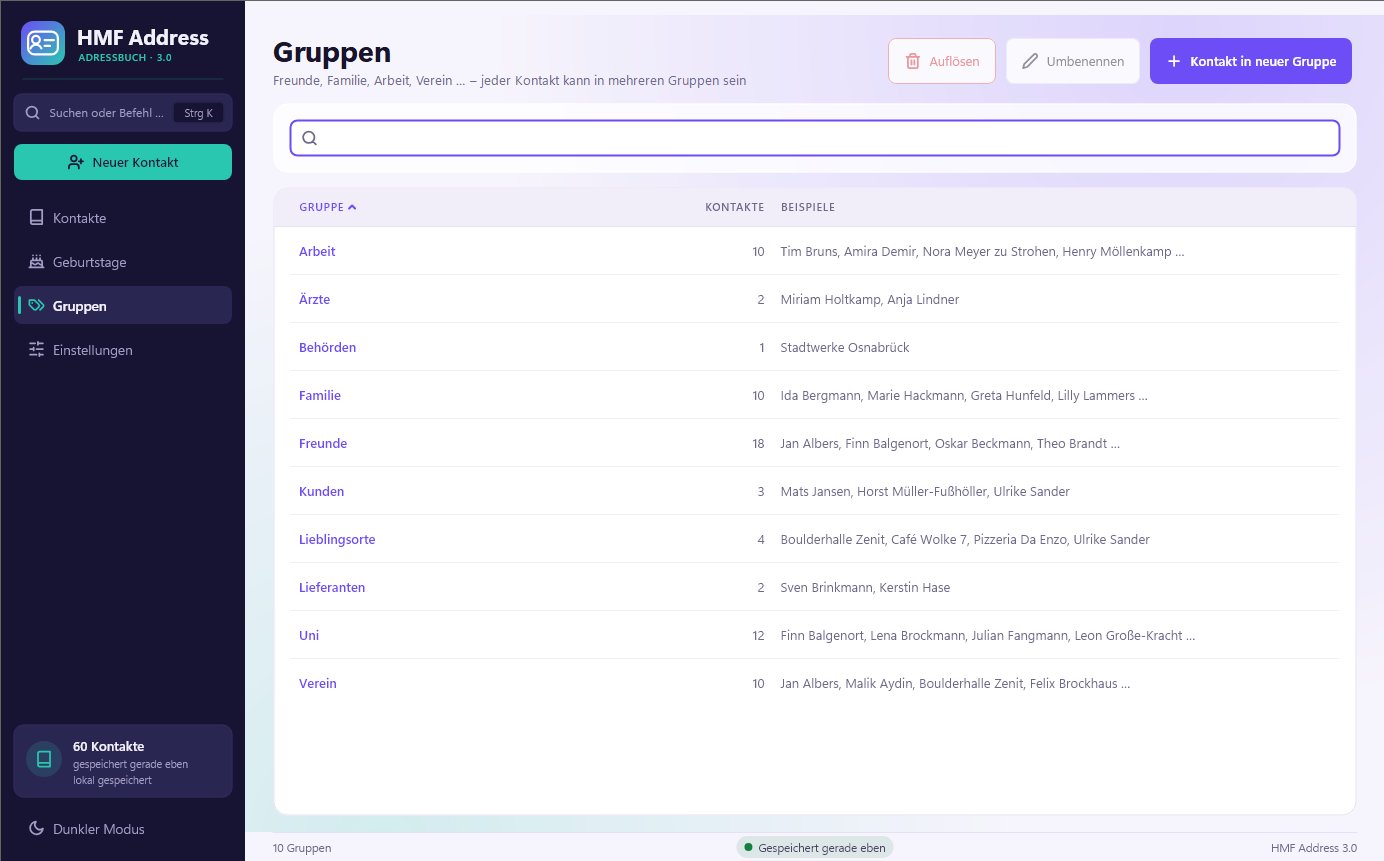
- Assign a group: in the contact, under Groups & notes, type a name and press Enter. Existing groups are suggested.
- View a group: on the Groups page, double-click a group. The contact list then shows only its members.
- Rename changes the name for all members at once.
- Dissolve removes the group from all contacts. The contacts themselves are kept.
- Contact in new group adds a contact and gives it a new group straight away.
#8. Printing and labels
What gets printed is always what the list is currently showing. Filter first, for example to the group “Christmas cards”, then print.
| What | Where |
|---|---|
| Address list | Contact list › Print list or Ctrl+P |
| Phone list | Command search Ctrl+K › “Print phone list” |
| Address labels | Contact list › Labels |
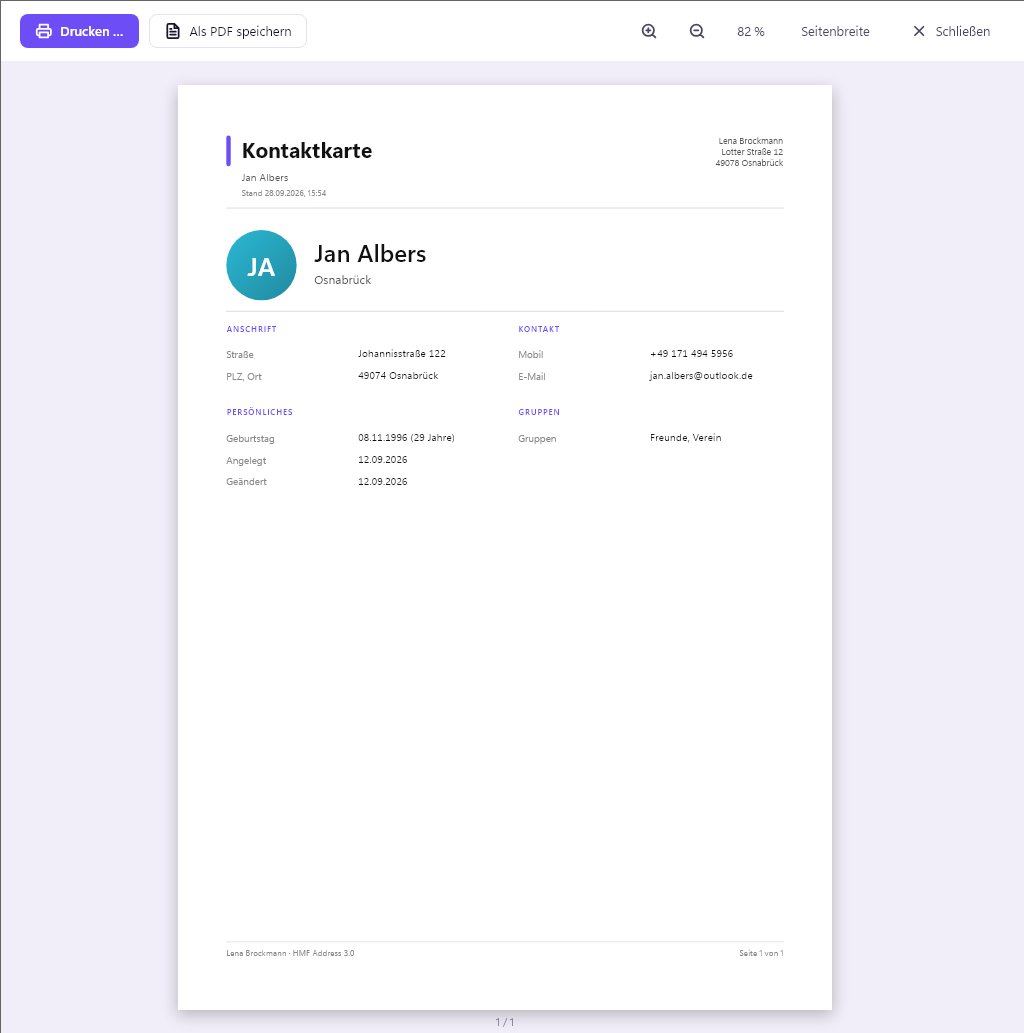
| Contact card | Sidebar or contact › Contact card |
| Birthday list | Birthdays › Print list |
The print preview
Before every print, you see exactly what will come out of the printer.
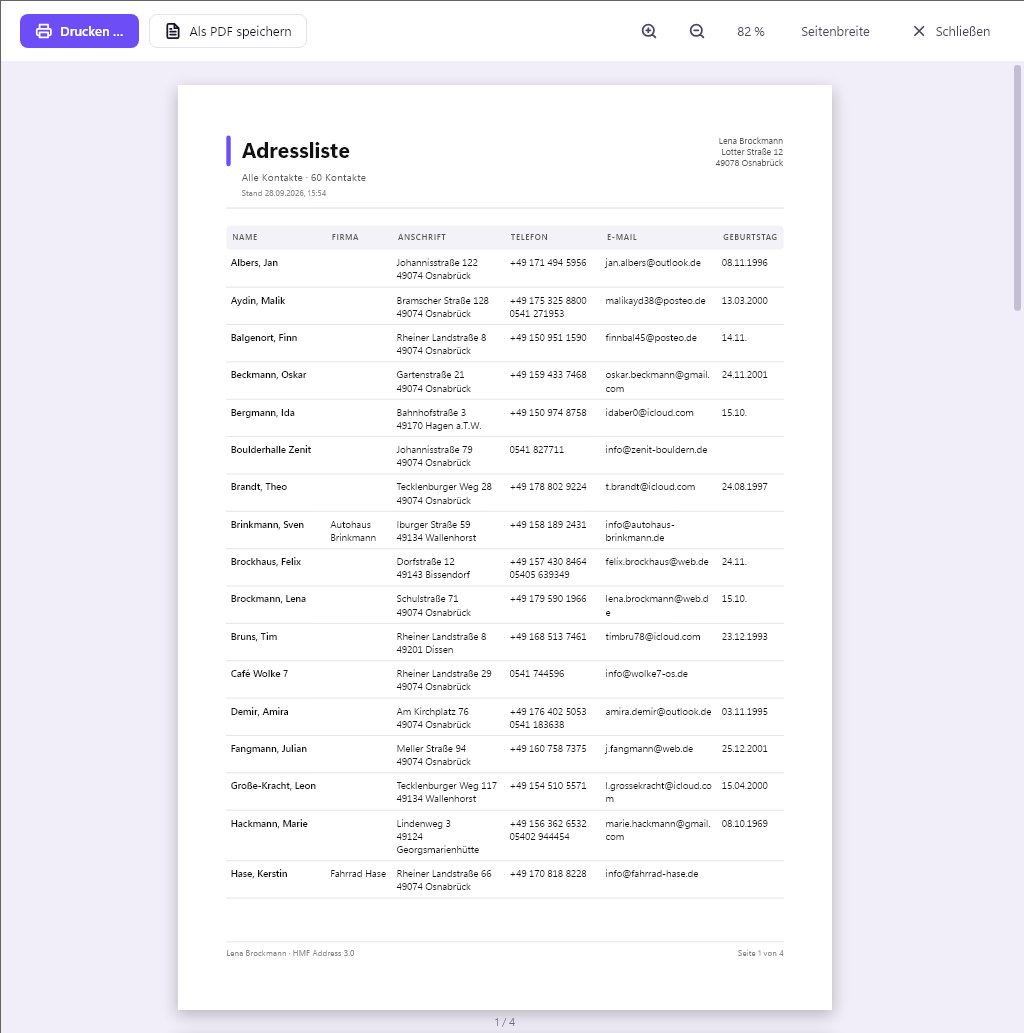
- Print… chooses the printer and prints.
- Save as PDF creates a PDF file, for example to send by email.
- Use the magnifiers or Ctrl+mouse wheel to zoom; Page width fits the page to the window.
Labels
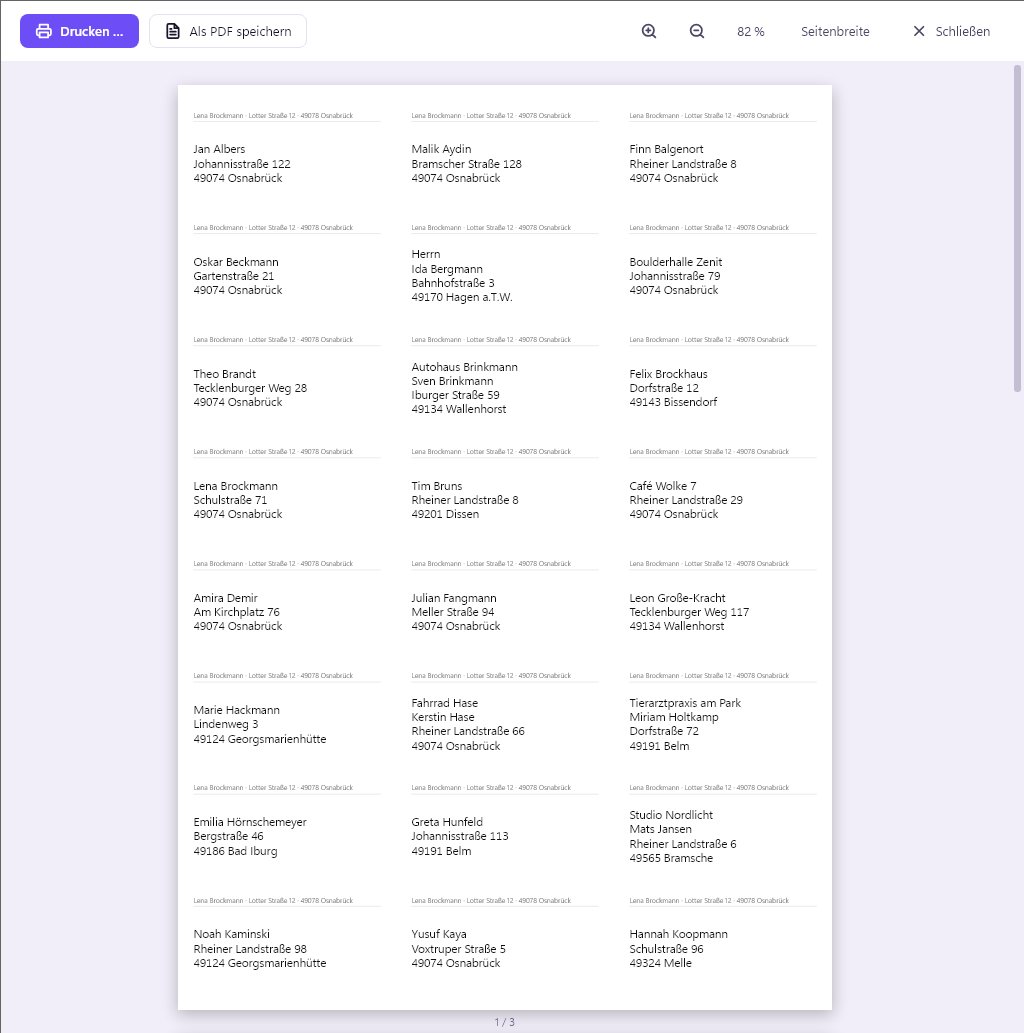
- You set the label sheet under Settings › You & your sender details: 3 × 8 (70 × 36 mm, e.g. L7160 or 3475), 3 × 7 (70 × 42.3 mm, L7161) or 2 × 7 (99.1 × 38.1 mm, L7163).
- If sender details are entered, they appear in small print above each address, as on a window envelope.
- Only contacts with an address get a label.
- Tip: print the first page as a test on plain paper and hold it against the label sheet up to the light.
#9. To your phone with a QR code
- Click QR code in the sidebar or in the contact.
- Open the camera on your phone and point it at the code.
- Tap the notification that appears and save the contact.
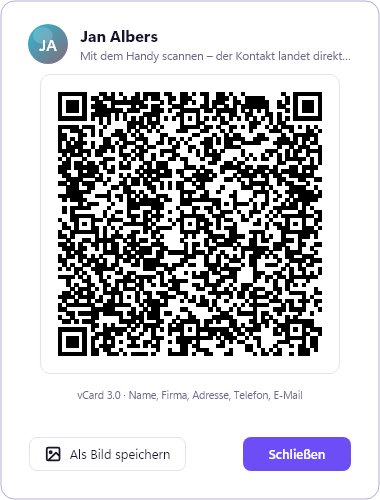
This works with iPhone and Android, with no app and no internet. To get all your contacts onto your phone at once, use a vCard (see Export).
#10. Import and export
Import
Under Settings › Import you can bring in contacts from other programs:
- HMF Address 1.x: the old database is found and imported with one click.
- CSV: from Outlook, Google Contacts, Excel or other address books. HMF Address recognises the columns itself, whether they are separated by semicolons, commas or tabs.
- vCard (.vcf): for example from your mobile or from Outlook, including several contacts in one file.
- Contact file: a backup or export from this program.
HMF Address checks every file first and tells you what it has recognised, for example “Detected: Outlook file (German)” or “vCard from iPhone / Mac”. The file extension doesn’t matter. Contacts that already exist are recognised and updated instead of being added twice. The trial version imports up to 25 contacts; with a licence, all of them.
How to get the file
First, save the contacts in the old program as a file. Then open this file under Settings › Import › Import file….
- Outlook (classic): File › Open & Export › Import/Export › Export to a file › Comma Separated Values, then choose the Contacts folder and save.
- New Outlook and Outlook.com: open People on the left, then Manage contacts › Export contacts (CSV).
- Google Contacts: open contacts.google.com, click Export, choose “Google CSV” or “vCard”.
- iPhone: on your PC, open icloud.com/contacts, select the contacts (Ctrl + A), then use the menu Export › vCard. Newer iPhones can also do it directly: in Contacts › Lists, press and hold the list and choose Export.
- Android: in the Contacts app, choose Manage contacts › Import/export › Export to .vcf file (named slightly differently depending on the manufacturer). Transfer the file to your PC by cable or email.
- Excel: the first row needs column names such as First name, Last name, Street, Postal code, City. Then File › Save As › CSV UTF-8. An .xlsx file itself cannot be read.
Export
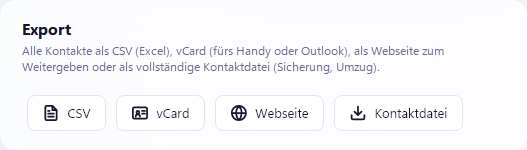
| Format | What for |
|---|---|
| CSV | for Excel, mail merge in Word, other programs |
| vCard | for your mobile, Outlook or other address books |
| Web page | a nice list to pass on or print from the browser |
| Contact file | complete backup, including photos, for moving to another PC |
#11. Appearance: colour themes, light and dark
Under Settings › Appearance you choose how HMF Address looks.
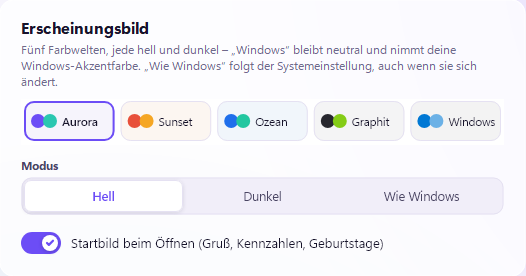
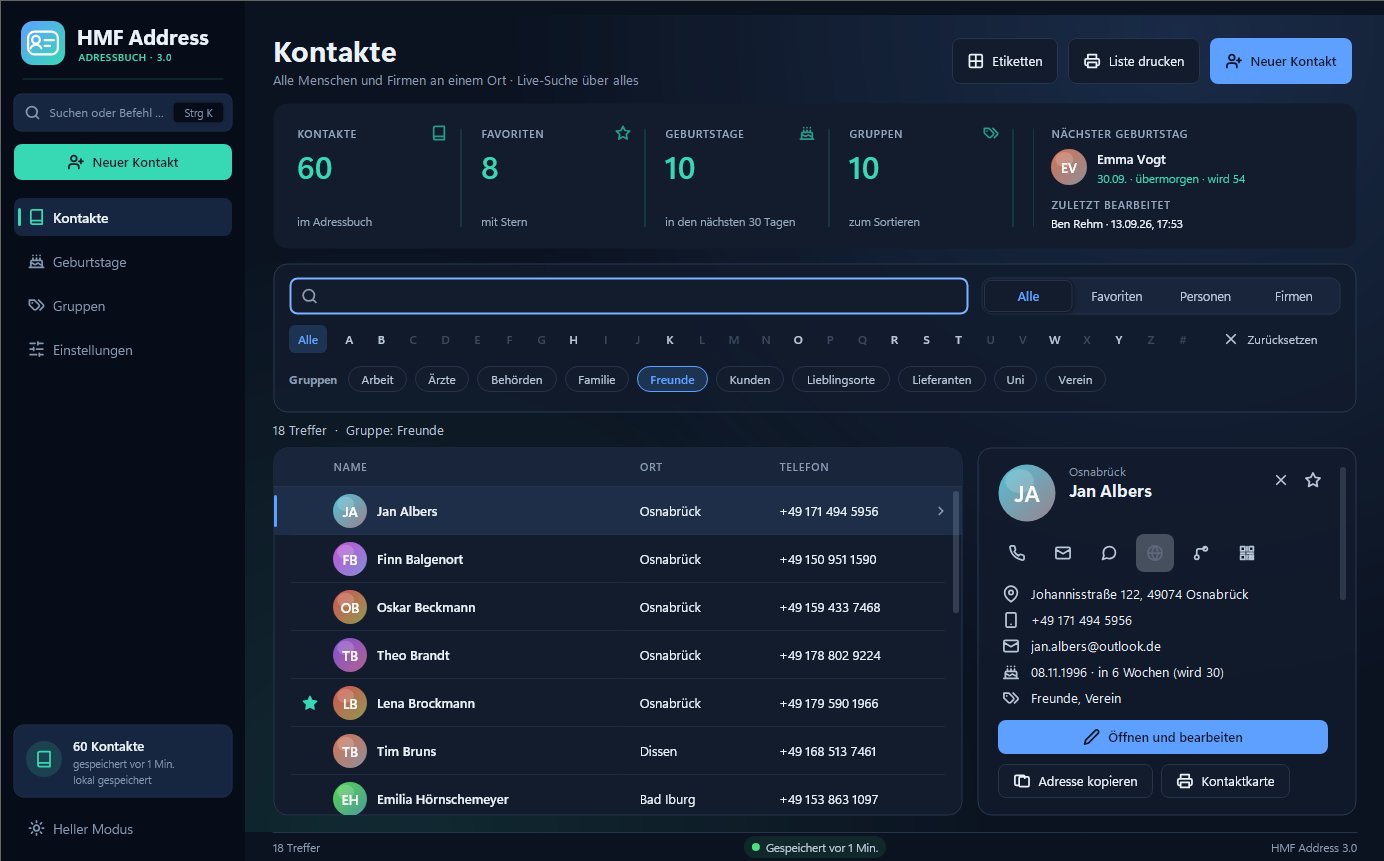
- Five colour themes: Aurora, Sunset, Ocean, Graphite and Windows. “Windows” stays neutral and uses your Windows accent colour.
- Mode: Light, Dark or “Same as Windows” (follows the Windows setting, even when it changes).
- To switch quickly: click Dark mode or Light mode at the bottom left of the sidebar.
- Welcome screen: you can switch the greeting on start-up on and off here.
#12. Your data and backups
Where are my contacts stored?
All contacts are kept in a single file, hmf-address-kontakte.json, in the data folder. Normally this is %APPDATA%\HMF-IT\HMF Address. Settings › Data & backups › Open folder shows it to you.
Automatic backups
- HMF Address saves every change immediately.
- Once a day it also makes a backup and keeps the last 30 days.
- Back up now makes an extra one at any time. One is also made automatically before every restore.
- All copies are in the subfolder
Sicherheitskopien.
Restoring
Settings › Restore from backup… and choose the file you want. The current state is backed up once more beforehand.
Using it on several PCs
Put your contacts in a cloud folder that your PC syncs anyway. HMF Address recognises Dropbox, OneDrive, Google Drive and kDrive by itself: go to Settings › Cloud and click, for example, Save to Dropbox…. You can take the suggestion, a folder “HMF Address” directly in your Dropbox, or choose your own folder in it. On the second PC, choose the same folder. Your contacts are then available even without the internet, and Open in Explorer shows you where they are.
HMF Address keeps an eye on things:
- Changes from the other PC are reloaded automatically.
- If the address book is also open on another PC right now, a note appears on start-up. Please only make changes on one PC then.
- If changes were made on both at the same time after all, nothing gets lost: the other version is kept as a backup. If the cloud app creates a second version of the file (a “conflicted copy”), HMF Address offers to merge the two.
On the go: portable copy
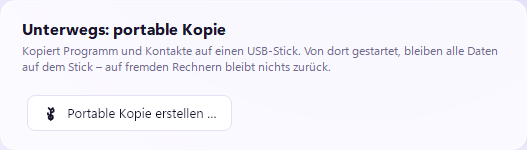
Settings › Create portable copy… copies the program and your contacts to a USB stick. When started from there, all data stays on the stick, and nothing is left behind on other people’s PCs. Technically, this works through an empty file portable.txt next to HMFAddress.exe.
#13. Command search and keyboard shortcuts
Command search
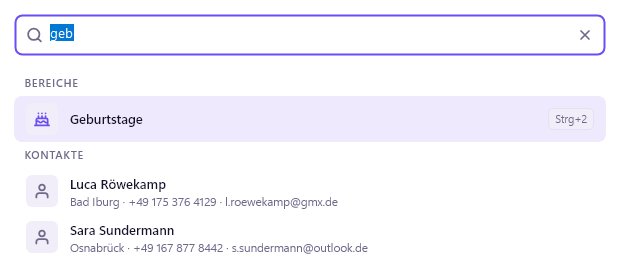
Ctrl+K or a click on the search box at the top left opens the command search. Type a few letters: a name, a page or an action such as “labels”, “dark” or “backup”. Use ↑ ↓ to select and Enter to run it.
Keyboard shortcuts
| Keys | Action |
|---|---|
| Ctrl+K | command search |
| Ctrl+N | new contact |
| Ctrl+F | search in the current list |
| Ctrl+S | save / add contact |
| Ctrl+P | print with preview |
| Ctrl+Z | undo last delete |
| Del | delete selected contact (can be undone) |
| Ctrl+1 to Ctrl+4 | contacts, birthdays, groups, settings |
| Esc or Alt+← | back, clear selection |
| Enter | next field, in lists: open |
| ↑ ↓ | move in lists and suggestions |
| F5 | refresh view |
#14. Purchase and licence
HMF Address is a one-off purchase, with no subscription. After downloading, it runs as a trial version. A licence key turns it into the full version, with no reinstalling and without losing any contacts.
The trial version
| Trial version | Full version | |
|---|---|---|
| Duration | 30 days | unlimited |
| Contacts | up to 25 (sample contacts don’t count) | as many as you like |
| Printing and PDF | marked “Demo version” | without marking |
| after 30 days | view, search and export | – |
You can see how many days are left at the bottom left and under Settings › Licence. Contacts from HMF Address 1.x are always imported in full, even if there are more than 25.
Buying
| Edition | PCs | for |
|---|---|---|
| Personal | 2 | one person |
| Family | 5 | one household |
| Office & Club | 10 | companies, practices, clubs |
- Choose the edition on the Buy page.
- Tick both boxes and pay with PayPal, usually also by direct debit or card.
- You see the licence key immediately on the page. You also receive an email with the key and invoice.
Activating
- In HMF Address, open Settings › Licence.
- Paste the key
HMFA-XXXX-XXXX-XXXX-XXXXfrom the email and click Activate. - Done. The PC needs the internet once for this; after that, everything also runs offline.
New PC
Your licence is valid for as many PCs as the edition allows. If you move to a new PC, click Deactivate this PC… under Settings › Licence on the old one. If the old PC is broken, write to us and we’ll free up the slot.
Email not arrived? Check your spam folder or write to us.
#15. About HMF Address
A click on the logo at the top left shows the version and publisher. Under Settings › About HMF Address you’ll also find ways to contact us and the location of the error log.
HMF Address is developed by HMF-IT UG in Osnabrück. Idea and development: Horst Müller-Fußhöller. The first version was released in 2008.
#16. Frequently asked questions and troubleshooting
How do I get my contacts from the old version?
Automatically, the first time you start the program. If that didn’t work because there were already contacts: Settings › Import › Import from HMF Address 1.x.
I deleted something by mistake.
Straight afterwards: Undo in the message or Ctrl+Z. Later: Settings › Restore from backup… and choose the copy from the previous day.
The columns are mixed up after importing.
Save the CSV file in Excel as “CSV UTF-8” and import it again. The first row must contain the column names, for example “First name”, “Last name”, “Street”.
The labels are not lined up exactly.
In the print dialogue, set the scaling to 100 % or “Actual size”, not “Fit to page”. Check that the right label sheet is selected.
“Call” does nothing.
Windows needs an app for phone numbers, for example “Phone Link” with your mobile, Teams or phone system software. On the first click, Windows asks which app to use.
The text is too small for me.
HMF Address follows the Windows display settings. Under Windows Settings › System › Display › Scale you can choose 125 % or 150 %, for example; then everything gets bigger, including HMF Address.
Where do I report a bug?
Using the contact form. The file fehler.log from the data folder is helpful. You can find where it is under Settings › About HMF Address.
Was this help useful?
Ask a question